

How to make SVG Maps in Mobile
First published: Monday December 16th, 2024
Report this blog
Prologue
Hello guys, Gade here, to do a blog that I had promised a long time ago. It will be about how to do SVG's on mobile, as the title suggests, with the help of the Boxy SVG Editor!
Some Clarifications
Before starting, I unfortunately need to say that Boxy SVG only has a 15 day free trial that starts when you make an account, but at least you don't need to put credit card beforehand.
For those interested, after the trial ends it costs 10€ per year.
Also, I believe that it is not as good as inkscape which the pc users have the privilege to use freely, but it's all we have...
Getting the SVG Maps
1. Go to geojson-maps, put high resolution and click on the countries you want for a quiz and then press "Build Custom GeoJSON" and then download. This is especially useful for a "Countries Bordering" quiz. Although, clicking small countries is literally impossible.
Anyway, after that, you go to mapshaper.org and select the file and when pressing export in the top-right corner you should select the file to be SVG and lastly export
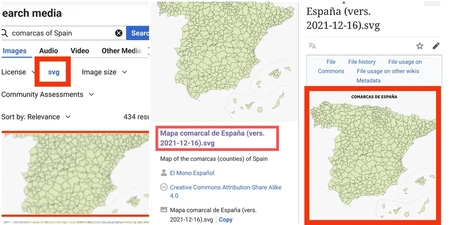
2. You can go search in Wikimedia Commons for SVG files. But getting the SVG is a bit complicated. So I'll break it down in pictures
3. Last way to get maps was said to me by Astana. Basically use AmCharts and go download your preferred country. This is especially good for provinces!
Making the SVG
First of all, I recommend computer mode for this site, as the mobile mode is just...horrific
So to start, every time you open the app you'll get greeted by a stupid cherry template. To get rid of that, press "file" and then "new" in the top-left corner of the interface. After that, again from "file" press "import" and press the SVG you want to create. Also, to undo something press the edit button on the top of interface and then undo.
Now the juicy part begins...
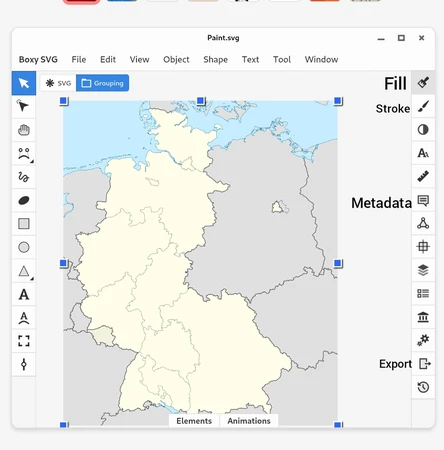
• Fill is about literally filling up everything you have. You can also directly copypaste colours. That is where you'll see if the SVG is actually good to do or just a waste of time. Some older SVG's (from commons especially) are bad and don't have proper paths hence the filling will get hella messy. So just scrap the idea
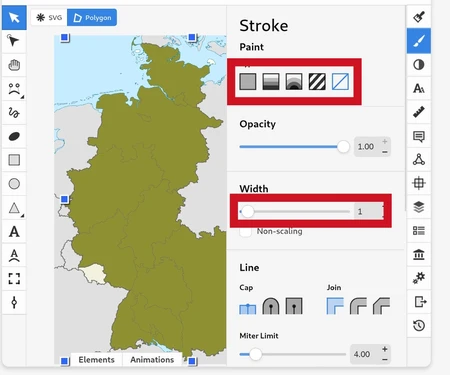
• Stroke is about the borders. Same as fill, but you need to "activate" the borders first, but it also has a "width" cursor, which you might want to play with
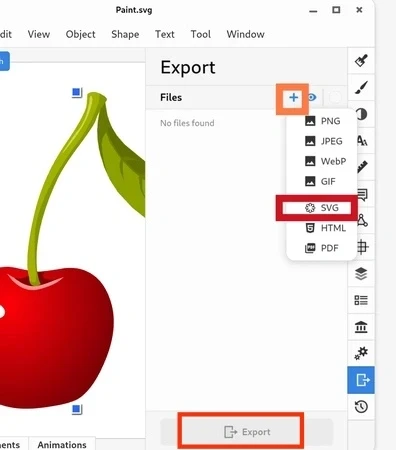
• Export is the last one you're gonna use. Make sure you have pressed the map, then select all, then group again, to get it all in one piece and then you press the "+" button on the export menu and then SVG. Lastly press the export button down there and it's done!
Colours in the SVG
#64BEFF - JetPunk ocean blue
#FFFF80 - JetPunk country yellow
#BEEDFF - JetPunk light water blue
#BBBBBB - JetPunk surrounding paths (e.g. Turkey on the Europe map)
#888888 - JetPunk disputed territories
#707070 - JetPunk country borders
#FF9900 - JetPunk cities / microstates (often at 70% fill opacity)
Importing into your Quiz
You just create the quiz you wanted, the type being text and in the answers you put a hint column in the left, which will be where the SVG Paths go. Lastly you import your SVG, which must be below 600kb. If not, I guess there are some good SVG compressors which can help or you delete unwanted stuff, like water in many cases.
Creating the quiz on JetPunk and the SVG can be done at the same time!
Epilogue
That was it! My very own mobile SVG Guide. I know it's not perfect, but it's the best I can do by explaining on a blog. So I will let you play with it, as the stuff I explained is very basic...
Fingers crossed that it's understandable...
Anyway, if you have any questions, feel free to ask!
Αντίο φίλοι!
Since it's on a time restriction I will probably use it when I have motivation for many map quizzes.
Or you could also use different emailsBut if you want to, you can play with it
As a laptop user, I respect those who make SVGs on mobile, I don't know how you manage to do it.
Remember Gade, if you need my help feel free to send me a comment on one of my quizzes ;)
If only there was inkscape in mobile...
But you still can do great SVG's from scratch, sooo
It would be bad for gaming though, right?
Whilst I can make SVGs that I am very proud of, it takes more time due to lag and it crashing altogether.